
In today’s digital world, having your business visible online is more important than ever. One of the most effective ways to increase your local visibility is through Google Business Profile (GBP). A crucial part of your GBP listing is having an accurate Google business profile phone number. This ensures that potential customers can reach you directly, leading to more inquiries, foot traffic, and ultimately, increased revenue. In this guide, we will walk you through how to add a phone number to your Google My Business profile, step by step, while also exploring the importance of maintaining updated Google My Business contact details.
Why Your Phone Number Matters on Google Business Profile
A Google business listing without a phone number is incomplete. Customers often rely on this information to connect with you quickly. When your Google My Business contact details are up to date:
- Customers can reach your business easily.
- You build trust with potential clients.
- Your GBP listing appears more credible to Google, improving local search ranking.
- It prevents losing potential customers to competitors with accurate Google business profile information.
Maintaining a current Google business profile phone number is crucial for all businesses, whether small or large. It’s not just about listing your number; it’s about providing an accessible line of communication for your customers.
Step-by-Step Process to Add a Phone Number to Your Google My Business Profile
Here’s how you can easily update your phone number on your Google Business listing.
Step 1: Sign in to Your Google Business Profile
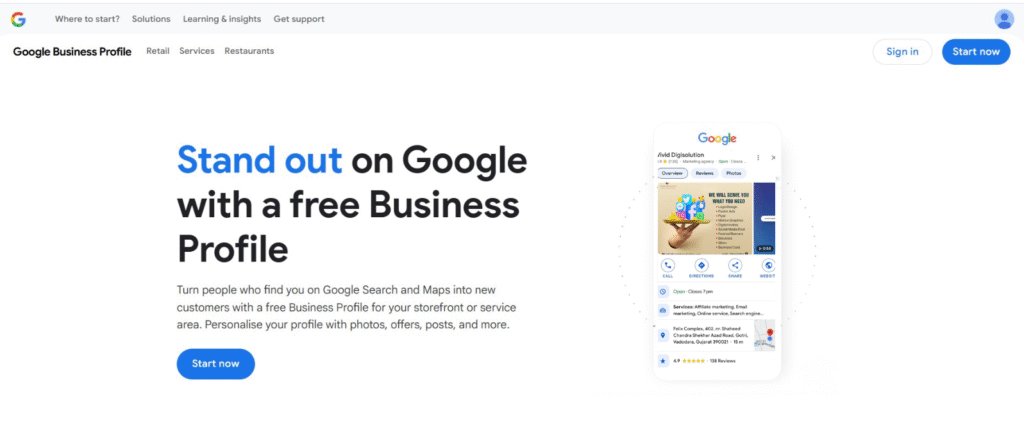
To start, visit Google Business Profile and click Sign In at the top-right corner. Make sure you log in with the GMB account linked to your business.
Step 2: Access Your Business Dashboard
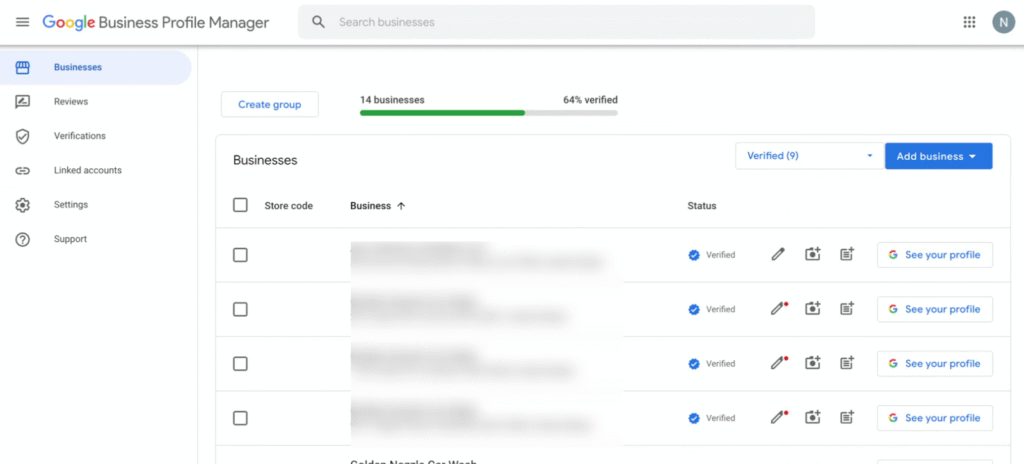
Once logged in, you will be directed to your GBP dashboard. This is your central hub for managing your Google business listing, including adding your Google My Business contact details, updating business hours, and responding to customer reviews.
Step 3: Navigate the Edit Profile section
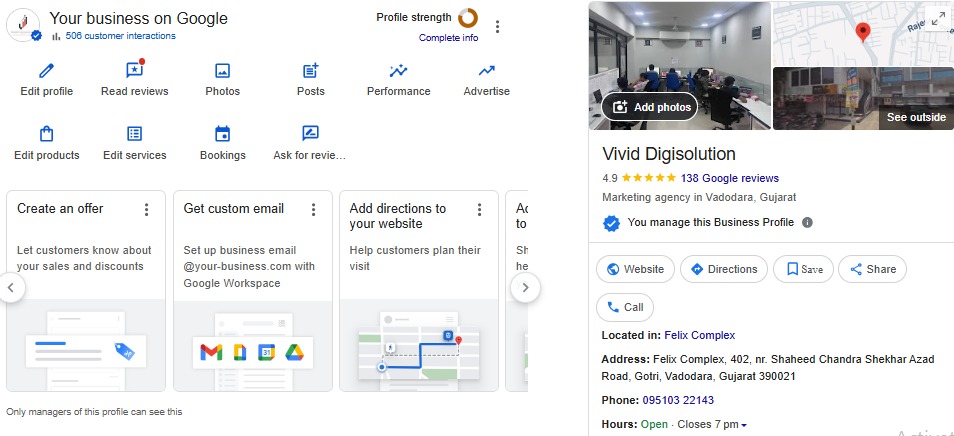
click on the Edit Profile section. This area contains all your business information, such as address, website, and phone number.
Step 4: Locate the Phone Number Section
Scroll down to find the phone icon. Here, you have two options:
- Add Phone – if no number is listed yet.
- Edit Number – if a phone number already exists.

Step 5: Add or Edit Your Phone Number
Click the pencil icon next to the phone number field. Enter your business phone number carefully. Double-check the number to ensure accuracy. This step is essential to maintain consistency across your GBP listing, website, and other online platforms.

Step 6: Save & Submit Changes
After entering your number, click Apply. Google will review your changes, which usually takes a few hours to three days. Your new number will then appear in your Google business listing, helping customers reach you easily.
Step 7: Verify Your Business
Your business must be verified for changes to appear publicly. If your business is not verified yet, Google will prompt you to complete the verification process. A verified GMB account ensures that your business information, including your phone number, is trustworthy and visible on Google Search and Maps.
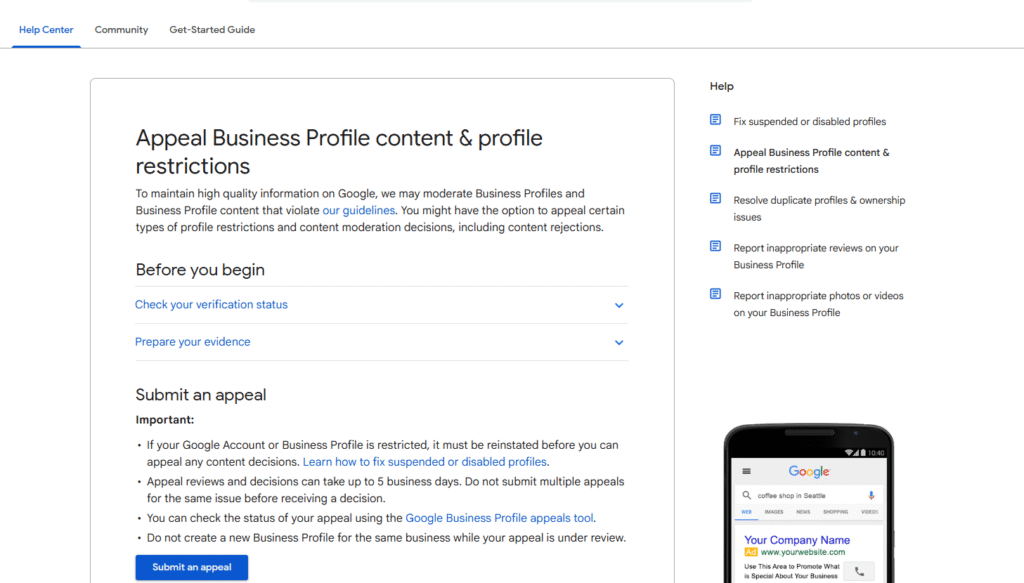
Appeal Process for Rejected Phone Number Edits
If your phone number edit is rejected:
1. Access the Appeals Tool:
- Go to the Google Business Profile Appeals Tool.
2. Sign In:
- Use the Google account associated with your business.
3. Select Your Business Profile:
- Choose the profile with the rejected edit.
4. Review the Reason:
- Understand why the edit was rejected.
5. Submit an Appeal:
- Click Submit Appeal.
- Provide any supporting evidence, such as:
- Screenshots of the correct phone number on your website.
- Business documents showing the phone number.
- Screenshots of the correct phone number on your website.
- Attach files within 60 minutes of opening the evidence form.
Note: Appeals are reviewed by Google, and decisions are communicated via email.
Best Practices for Managing Your Google Business Listing
Adding your phone number is only the beginning. To maximize your GBP listing performance, follow these best practices:
- Regularly update your contact details every 3 months or whenever changes occur.
- Keep your phone number consistent across all platforms – website, social media, and directories.
- Monitor user-suggested edits to ensure your information remains accurate.
- Include additional numbers if you have multiple departments or locations.
- Respond promptly to inquiries received through your Google My Business profile to build trust and engagement.
Benefits of an Updated Google Business Profile Phone Number
Maintaining an updated Google My Business contact number has several advantages:
- Improves local SEO rankings and visibility.
- Increases direct customer calls, inquiries, and leads.
- Reduces customer frustration from outdated contact information.
- Enhances your brand reputation as reliable and accessible.
Conclusion
A complete Google Business listing goes beyond just adding your business name and address. Your Google business profile phone number is a vital connection point for your customers. By following this guide on how to add a phone number to your Google My Business profile, you ensure your business is reachable, trustworthy, and competitive in local search results.
Maintaining accurate Google My Business contact details is a simple yet powerful step toward growing your business online. Ensure your GMB account is up-to-date, respond to customer inquiries promptly, and watch your local presence improve dramatically.
For expert assistance in managing your Google business profile, list your business on Google correctly, and optimize your GBP listing, contact Vivid DigiSolutions today.